The show screen
A tour of the screen you play from — the header, the setlist, and the Now panel.
Downstage 0.9.0 · updated 13 Oct 2026The show screen holds what you touch during a gig, and nothing else. Everything that is setup lives in Backstage.
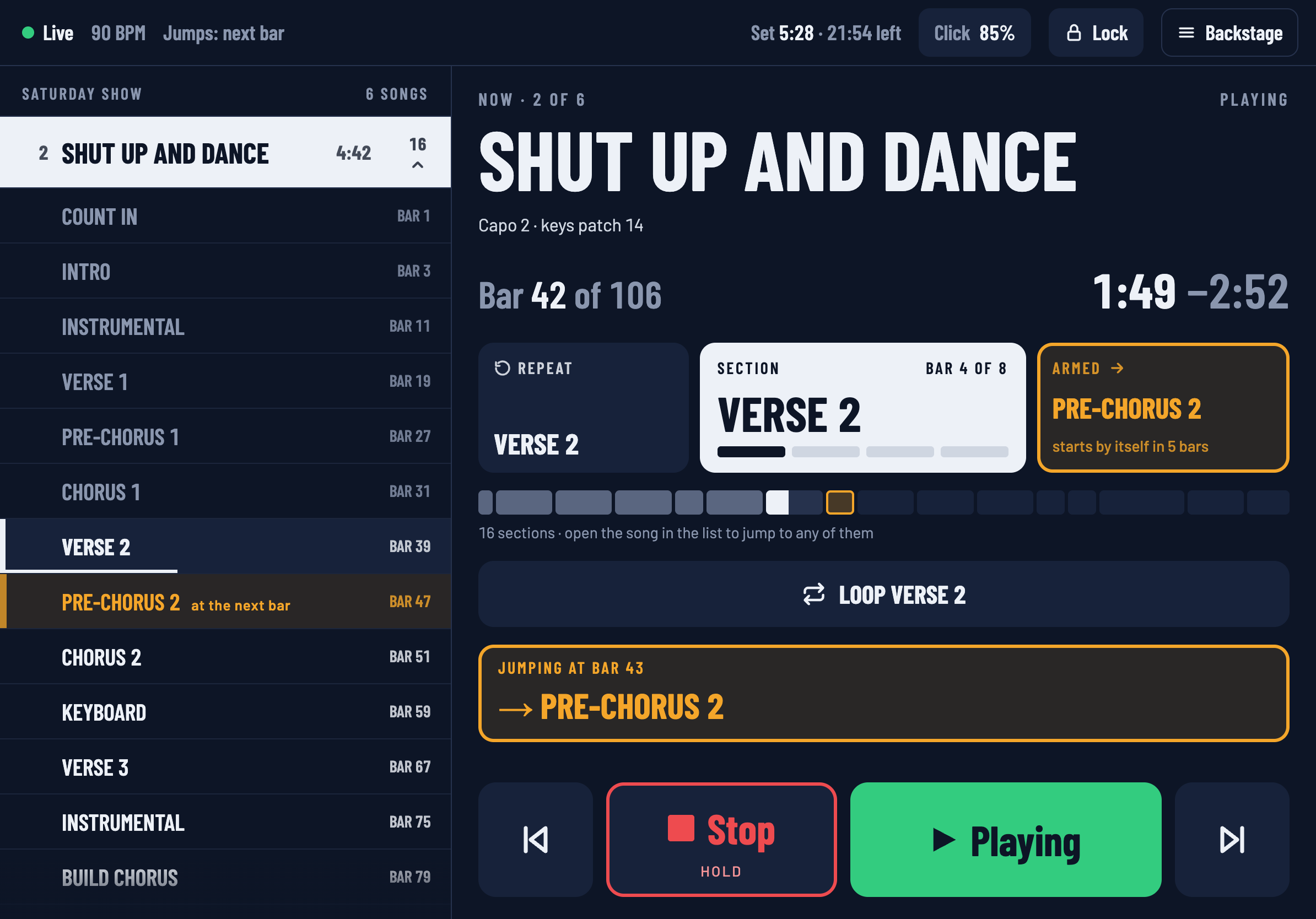
The header
One row across the top, left to right:
| ● Live | Green when Downstage is talking to Ableton Live. Red and Waiting for Live when it is not. |
| 120 BPM | Live's tempo where the playhead is. |
| Jumps: next bar | Live's launch quantisation — when a jump you ask for will happen. |
| 1 warning | Appears only when something needs fixing. Tap it to see what. Red if it changes what a tap will do. |
| Set 5:28 · 21:54 left | Time into the setlist, and time left in it. Shown when a setlist is on stage. |
| Click 85% | The click's level. Tap for the Click & cues panel. |
| Lock | Locks the screen against stray taps. |
| Backstage | Setlists, settings and everything else. |
As the window gets narrower the header drops what you need least — the quantisation, then the tempo — and never wraps to a second row.
The setlist
The column on the left is the running order: the setlist that is on stage, or the songs in arrangement order if there is none.
- The song playing is the bright row. Songs already played are dimmed, so your eye lands on what is coming.
- Each row shows the song's number, its name and its length. Stops after appears under a song that is set to stop at its end.
- A song with sections has a count and a chevron on the right. Tap that to open or close its list of sections. It is a separate target from the row itself, so tapping the row still jumps.
- Lists stay as you leave them. Nothing opens or closes by itself in the middle of a song.
Tapping a song jumps to it. Tapping a section jumps to that.
The Now panel
Everything about the song that is playing, top to bottom:
- Now · 2 of 6 — where you are in the setlist — and the state: Playing, Looping, or Stopped at bar 41.
- The song's title, and its note if it has one.
- Bar 42 of 106, then time gone and time left:
1:49 −2:52. - Three tiles for the section you are in:
- Repeat — go back to the start of this section.
- The section itself, with the bar you are on within it and a square for each beat.
- Skip to — go to the next section now, with a note of how many bars until it would start by itself.
- The timeline — one block per section, as wide as the section is long. It shows where you are in the song. It is not a control.
- Loop — hold this section until you release it.
- The Next card — the song after this one. When any jump is armed, this card turns amber and says what is about to happen: Jumping at bar 43 → Pre-Chorus 2.
- The transport — Previous song, Stop, Play, Next song.
The Now panel never scrolls. On a short window it gives up captions and small print first; the transport is always there, at full size.
What the colours mean
Each colour means one thing, everywhere in the app.
| Amber | A jump is armed and waiting for the bar line. Nothing else is ever amber. |
| Green | Live is playing, or connected and healthy. |
| Red | Stop — and anything that needs you now, like a lost connection. |
| Blue | Something that is so until you change it: a loop being held. |
On a narrower window
The layout follows the width of the window, so it works in iPad Split View and on a phone. Below about half an iPad's width the setlist column gives way to an Up next list and a sheet. See Split View with your charts.