Split View with your charts
Running Downstage beside a chords, lyrics or notes app on one iPad.
Downstage 0.9.0 · updated 13 Oct 2026Downstage does not show chords or lyrics. Most players already have an app for that, so Downstage is built to sit beside it: put your charts on one side of the iPad and the show on the other.
Set it up
- Open your charts app, and open Downstage in Safari or from its Home Screen icon.
- Put the two side by side with iPadOS's multitasking controls — Split View on older versions of iPadOS, freely resizable windows on newer ones.
- Drag the divider or the window edge to give each side the room it needs.
Either side works. Downstage lays itself out by the width it is given, not by which side it is on.
How it changes shape
Downstage has four layouts. It picks one from the width of its own window, so the same rules cover Split View, Slide Over, Stage Manager and a browser window on a laptop.
| Window width | Typical case | What you get |
|---|---|---|
| Wide (1000 and up) | iPad landscape, full screen | The setlist column and the Now panel, side by side. |
| Two-thirds (700–999) | Split View, the larger side | The same two columns, with a narrower setlist. |
| Half (420–699) | Split View, equal halves | One column. Up next shows the next three songs. |
| A third (under 420) | Split View, the smaller side; Slide Over | One compact column, with the transport on two rows. |
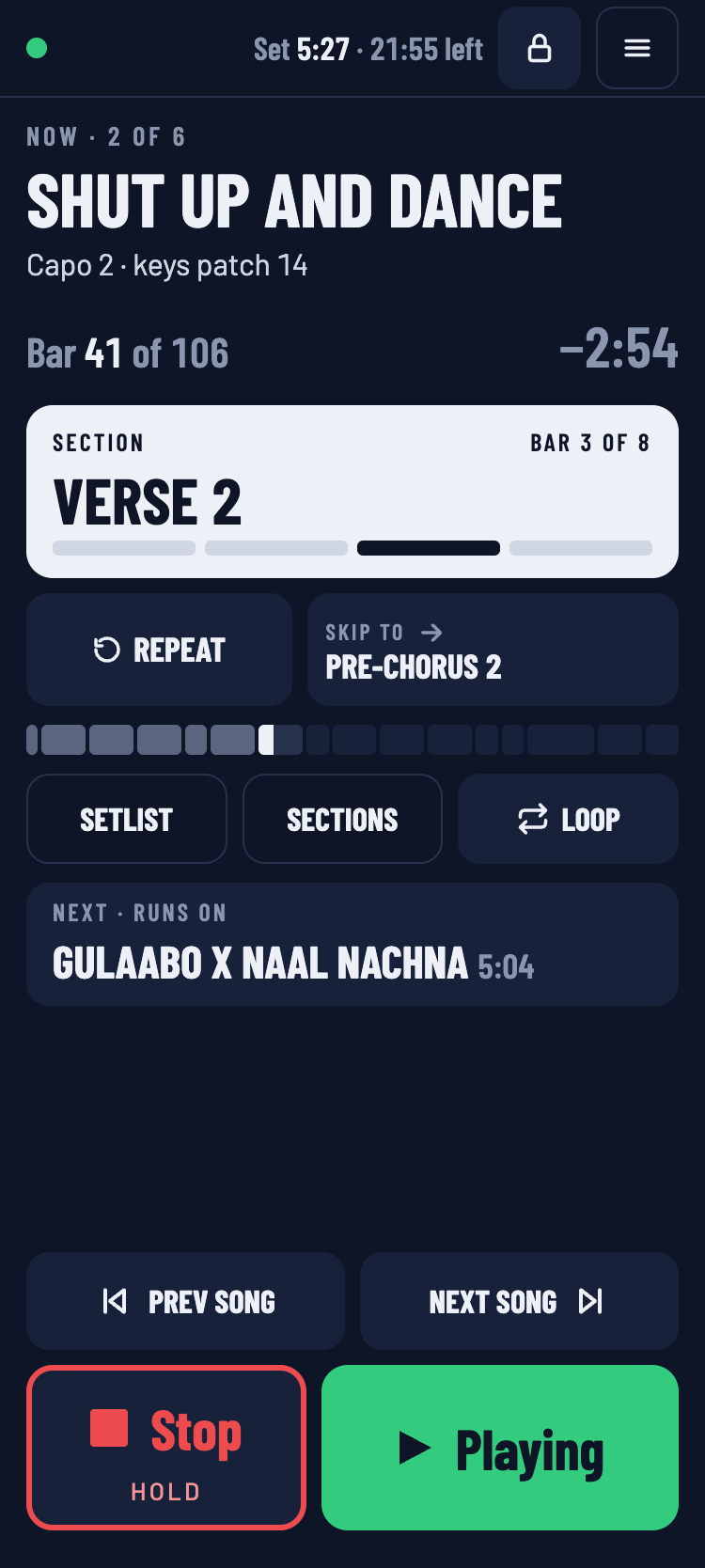
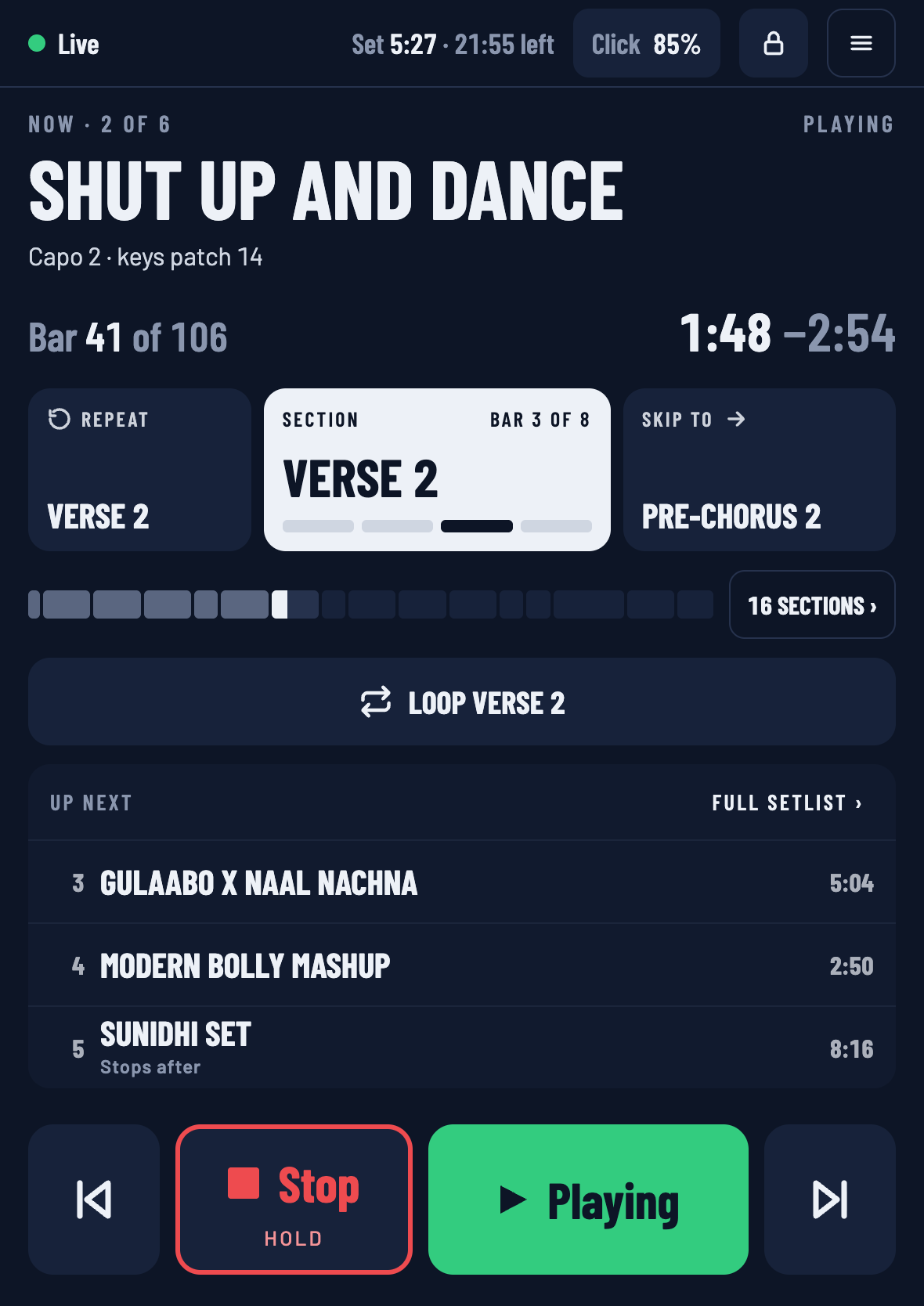
An iPad held upright gets its own arrangement: the Now panel on top, the setlist in the middle, and the transport pinned at the bottom under your thumb.
What never goes
At every size you can still see and reach:
- whether Live is connected, and the set clock,
- the song's title, the bar and the time left,
- the section you are in, with Repeat and Skip to,
- the amber card whenever a jump is armed,
- all four transport buttons, with Stop and Play at full height.
What gives way, in order, is the small print: the quantisation label, the tempo, captions, then the words on the Lock and Backstage buttons (the icons stay).
Reaching the setlist and the sections
When the setlist column is not on screen:
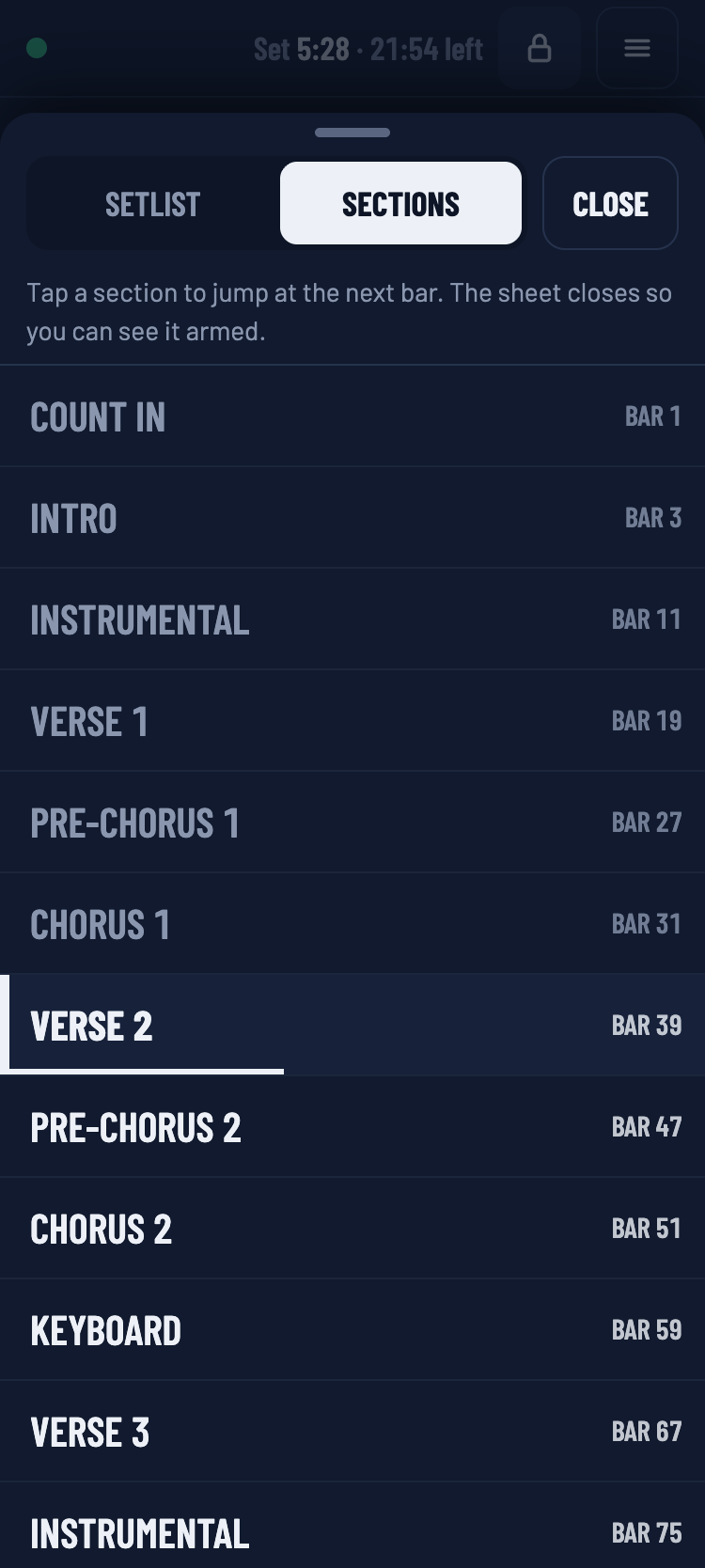
- At half width, Up next lists the next three songs. Tap one to arm a jump to it. Full setlist › opens the whole list, and 16 sections › beside the timeline opens the sections.
- At a third, the Setlist and Sections buttons do the same.
Both open a sheet with a Setlist / Sections switch. Tap a row and the sheet closes by itself, so the amber card is in view when the jump is armed.
Use Lock
Reaching across to turn a chart page is exactly how a song gets tapped by accident. In a narrow window Downstage suggests it once: turn on Lock. The setlist and section controls then ignore taps, and the transport still works.
Two things to know
- Pedals. A Bluetooth page-turner pedal sends key presses to whichever app has focus. Downstage never takes focus on the show screen, so the pedal keeps turning pages in your charts app.
- Sleep. A web page cannot keep an iPad awake, in Split View or out of it. Set Auto-Lock to Never before the gig — see Connect your iPad.